Wednesday, October 5, 2011

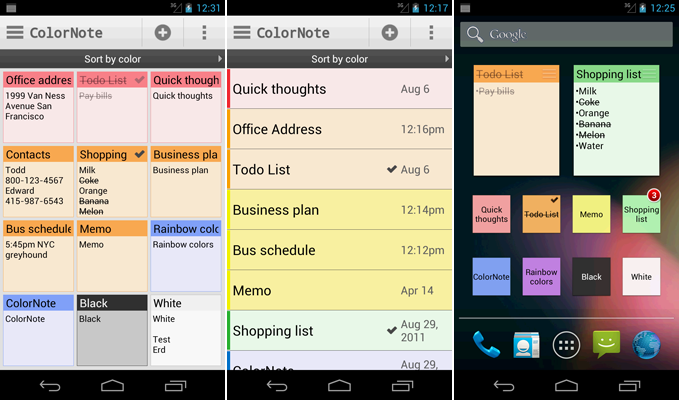
ColorNote 3.6.4 Black theme added


How to change theme to black :
1. Tap 'ColorNote' on upper left corner
2. Theme
3. Select Black

ColorNote BackUp & Sync : How to transfer notes from old phone to new phone. How to sync notes between phone and tablet.

ColorNote BackUp, Restore & Sync Manual

About Sync : When you sync on the phone, it sync notes with ColorNote Online Service. You can sync notes between phone and tablet or you can restore notes on the new phone. We will support PC client later.

[How to transfer notes from old phone to new phone]

[1] When you have old phone
+ Using online sync. [Recommended]
1. Sign up online sync on your old phone. [Menu - Backup - Sign Up]
2. Sync [Menu - Sync]
3. Check how many notes are synced [Menu - Settings - Online Sync - Synced notes]
4. Sign in online sync in your new phone. [Menu - Backup - Sign In]

+ Using sdcard backup
1. Goto sdcard backup screen on your old phone. [Menu - Backup - SD card backup]
2. Backup Notes [Press button - Enter master password - Done]
3. Move sdcard from old phone to new phone
4. Goto sdcard backup screen on your new phone
5. Tap backup item you want to restore - Type password that you have set when backup file was created.

[2] When you don't have old phone
+ If you already signed up online sync on your old phone
1. Just sign in online sync with same account on your new phone.

+ If you didn't signed up online sync.
1. Move sdcard from old phone to new phone
2. Goto sdcard backup screen on your new phone
3. Tap backup item you want to restore - Type password that you have set when backup file was created.

[3] When your phone is reset
+ Try to restore notes like when you don't have old phone.

- Trouble shooting
+ You cannot find backup menu and you can see sync menu only.
1. Go to online sync settings [Menu - Settings - Online Sync]
2. Sign Out [Menu - Sign out]
3. Now you can see backup menu on the main screen. Try to restore notes from sdcard.
4. Sign in online sync again.

[How to sync notes between phone and tablet]
1. Sign up online sync on your phone. [Menu - Backup - Sign Up]
2. Sync on your phone
3. Sign in online sync in your tablet.
4. Sync on your tablet.

Monday, August 29, 2011

ColorNote 3.6.0 is released

-2x2 size note widget added
-2x2 size today widget added
-You can change trasparency of widgets
-Supports online backup and sync
: Notes will be encrypted before uploading using the AES standard,
which is the same encryption standard used by banks to secure customer data.
: It does not send any of your notes without your signing up.

Monday, June 6, 2011

Color Flashligh HD released


Color Flashlight HD is released. Design is improved & new effects are added.

Market : Download link

PS. Photo sent from Color Flashlight user. He took a picture with color flashlight


Monday, May 9, 2011

Android Note App ColorNote updated to 3.0


Added features
- Double Tap to enter edit mode
- Double Tap for quick word selection on text editor
- Ccalendar : Swipe on main screen
- Dashboard : Archive, Recycle bin
- Wiki style auto link : [[Title]]
- Improved interface
- Many UI Changes & minor updates

Version 3 update is now available on Android Market and will be updated soon on amazon appstore.

-Android Market : Download
-Amazon Appstore : Download

Monday, January 24, 2011

ColorDict Intent API for 3rd party developers

You can use PopUp dialog style ColorDict result on your app.
You can specify FrameLayout LayoutParams for dialog.

public static final String SEARCH_ACTION = "colordict.intent.action.SEARCH";
public static final String EXTRA_QUERY = "EXTRA_QUERY";
public static final String EXTRA_FULLSCREEN = "EXTRA_FULLSCREEN";
public static final String EXTRA_HEIGHT = "EXTRA_HEIGHT";
public static final String EXTRA_WIDTH = "EXTRA_WIDTH";
public static final String EXTRA_GRAVITY = "EXTRA_GRAVITY";
public static final String EXTRA_MARGIN_LEFT = "EXTRA_MARGIN_LEFT";
public static final String EXTRA_MARGIN_TOP = "EXTRA_MARGIN_TOP";
public static final String EXTRA_MARGIN_BOTTOM = "EXTRA_MARGIN_BOTTOM";
public static final String EXTRA_MARGIN_RIGHT = "EXTRA_MARGIN_RIGHT";
Intent intent = new Intent(SEARCH_ACTION);
intent.putExtra(EXTRA_QUERY, "hello"); //Search Query
intent.putExtra(EXTRA_FULLSCREEN, false); //
intent.putExtra(EXTRA_HEIGHT, 400); //400pixel, if you don't specify, fill_parent"
intent.putExtra(EXTRA_GRAVITY, Gravity.BOTTOM);
intent.putExtra(EXTRA_MARGIN_LEFT, 100);
startActivity(intent);

Check intent before using it

public static boolean isIntentAvailable(Context context, Intent intent) {
final PackageManager packageManager = context.getPackageManager();
List list = packageManager.queryIntentActivities(intent, PackageManager.MATCH_DEFAULT_ONLY);
return list.size() > 0;
}


-------------- PICK API ---------------------
[Constant]
public static final String PICK_RESULT_ACTION = "colordict.intent.action.PICK_RESULT";

[Code]
Intent intent = new Intent(PICK_RESULT_ACTION);
intent.putExtra(EXTRA_QUERY, "hello"); //Search Query
intent.putExtra(EXTRA_FULLSCREEN, false); //
intent.putExtra(EXTRA_HEIGHT, 400); //400pixel, if you don't specify, fill_parent"
intent.putExtra(EXTRA_GRAVITY, Gravity.BOTTOM);
intent.putExtra(EXTRA_MARGIN_LEFT, 100);
startActivityForResult(intent, 5);

[RESULT]
@Override
protected void onActivityResult(int requestCode, int resultCode, Intent data) {
super.onActivityResult(requestCode, resultCode, data);
if(resultCode == RESULT_OK) {
Log.d("test", data.getStringExtra(Intent.EXTRA_SUBJECT));
Log.d("test", data.getStringExtra(Intent.EXTRA_TEXT));
}
}


Thursday, October 21, 2010

Android Notepad ColorNote FAQ

Q : How do you put a sticky note on the home screen?
A : Goto home screen and long press empty space and choose widget, ColorNote will be there for sticking on page. http://www.youtube.com/watch?v=DpMLF9b2aTQ See this youtube video to learn about the home screen widget.

Q : How come the widget and the alarm and remider functions don't work?
A : If the app is installed on the SD card, your widget, reminder and etc. will not work properly because Android doesn't support them! If you have already moved app to SD card, but you want those features, you have to move it back to device and reboot you phone.

Settings - Applications - Manage Applications - ColorNote - Move to Device

Q : Where are 'Archive' and 'Recycle Bin'?
A : Click 'ColorNote' on top left of the main screen.

Q : I had to reinstall color note and there is an automatic backed up data that was stored but it requires a password and I hadn't set one up in the past. How do I retrieve that information?
A : Try default password '0000' (numbers)

Q: How do you back up the notes?
A: Goto backup screen 'Menu-BackUp' , tap backup button, and enter your master password.

Q: How do you restore backed up data on SD card?
A: Goto backup screen 'Menu -> BackUp -> SD card backup' then you can see list of backup files. Tap backup item you want to restore. Type password that you have set when backup file was created. The password is same as the password for lock notes.

Q: Where is backed up data at?
A: /data/colornote/backup on sdcard (/sdcard/data/colornote/backup)

Q: I forgot my password, how can I change it?
A: Menu -> Settings -> Master Password -> Menu Button-> Clear Password.
!! You will lose current locked notes when you clear password.

Q: I don't remember my password to restore backed up data. Any help?
A: It can't be restored if you don't know the password.

Q: How to move up & down a checklist item?
A: Touch left icon and drag to move it. If drag & drop doesn't work, Settings -> Advanced Settings -> Turn off 'List item drag and drop'

Q: ColorNote is stuck in an "Installing" state. I can not update it or reinstall it.
A: That seems the market app problem. Go to Settings-->Applications-->Manage applications-->Market and clicked on 'clear data' or Go to Settings -> Applications and deinstall the Market update. -> Clear the Market's cache and data. https://market.android.com/support/bin/answer.py?hl=en&answer=1067233&topic=1100168